AI Image Expander
AI image expansion generates new surroundings beyond a photo's edges. Choose a supported aspect ratio to adapt it for banners or vertical posts.
Examples to try
How to Expand an Image with AI
AI outpainting extends the scene outside the original borders, aiming to preserve the subject while creating a wider banner, taller post, or room for layout copy.
- 01
Upload a clear source image
Add one JPG, PNG, or WebP up to 5MB. A clear subject and a well-exposed image give the model more useful detail.
- 02
Choose the new aspect ratio
Choose from 1:1, 4:3, 3:4, 16:9, 9:16, 3:2, 2:3, 21:9, or 9:21. AI uses the original as a reference to generate the surrounding scene; details may change.
- 03
Run the tool and download
Start the edit, compare the before and after, then download the finished image or find it later in My Creations.
The other tools
Try another AI tool optimized for a specific image task.
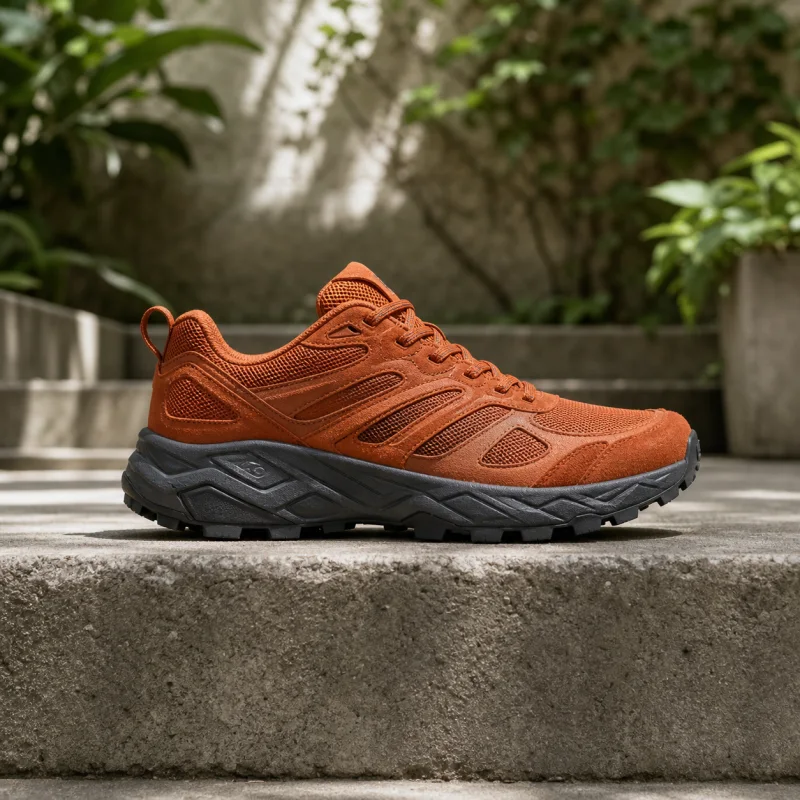
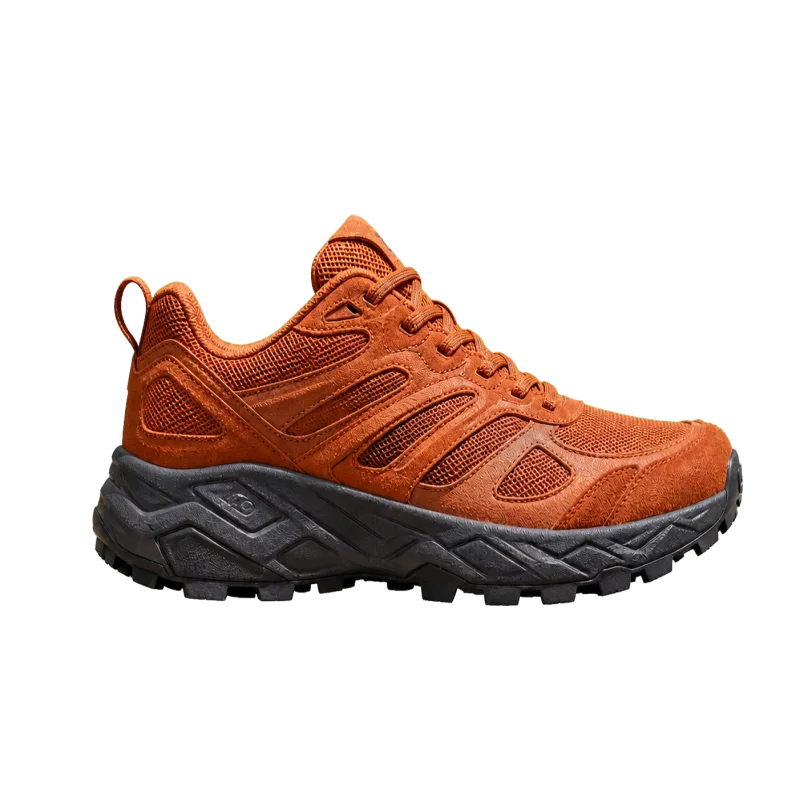
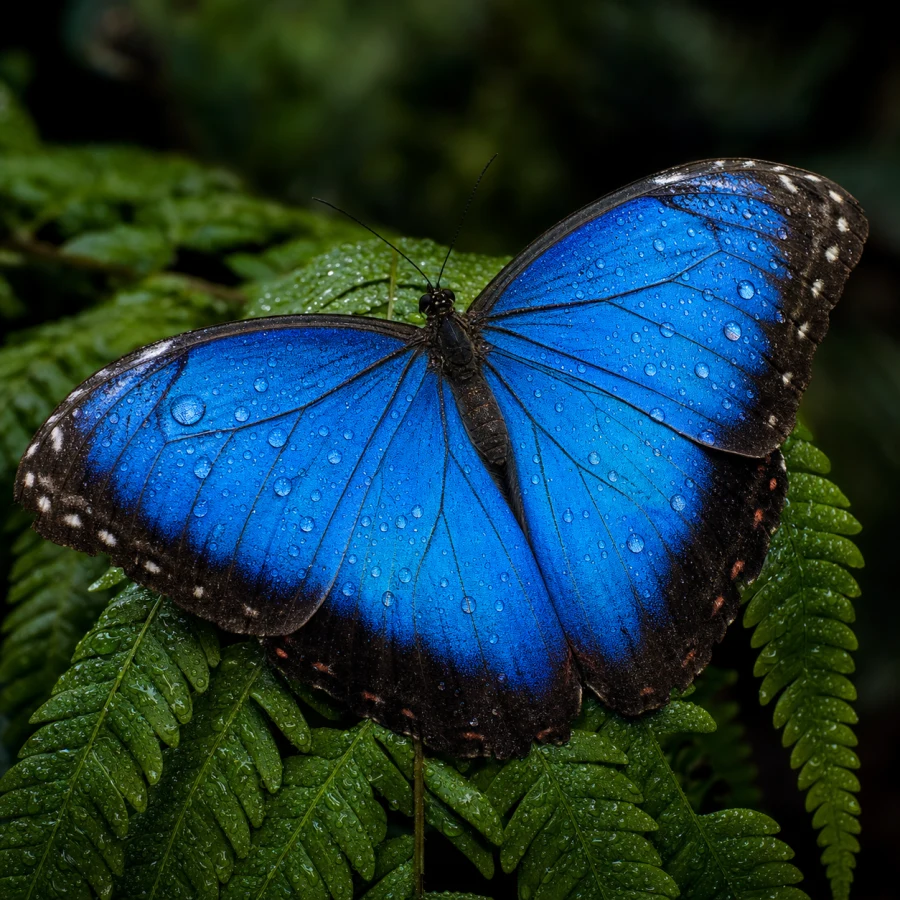
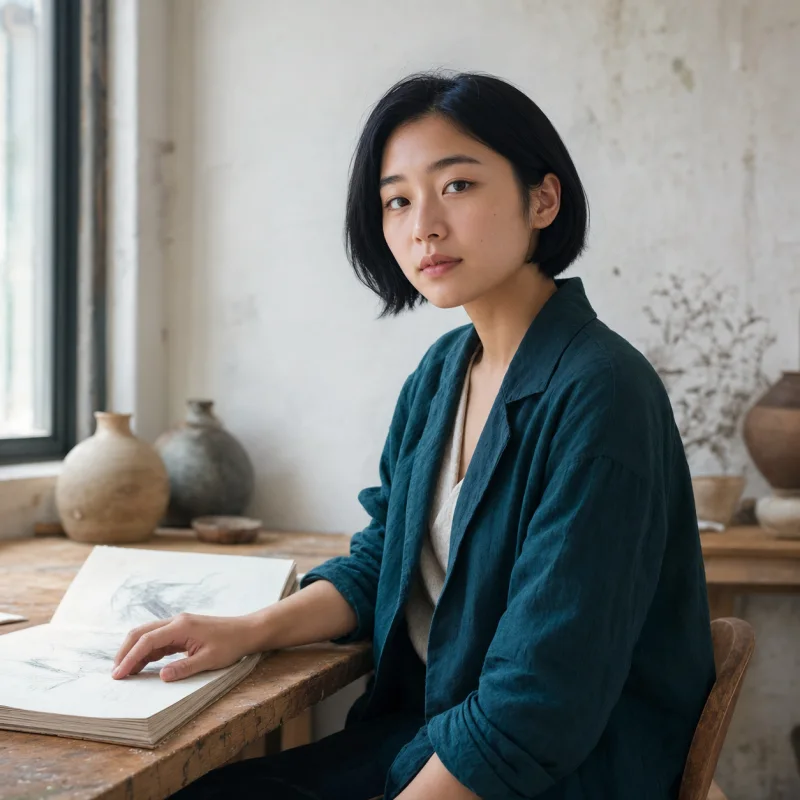
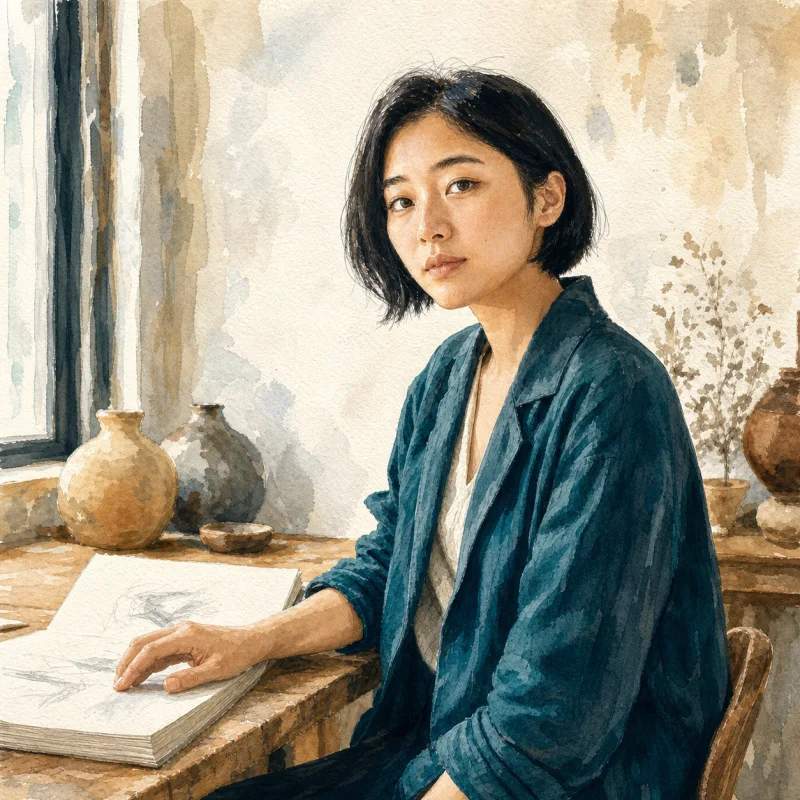
Image expander FAQ
Answers about AI outpainting, aspect ratios, cropping, image quality, good source images, cost, and private storage.
Does it stretch or crop my image?
It generates new surroundings to fit the selected aspect ratio rather than simply stretching the photo. AI may change subject details or composition; check the subject, text, and edge transitions before downloading.
Which aspect ratios can I create?
Choose from 9 supported ratios: 1:1, 4:3, 3:4, 16:9, 9:16, 3:2, 2:3, 21:9, and 9:21. Pick the format you need before running the tool.
What does one expansion cost?
Nano Banana Pro is selected by default, with a base cost starting at 95 credits. You can choose other compatible models; check the model picker for their credit costs. Credits deducted for a failed task are refunded.
What happens to the image I upload?
It is stored so the model can process it and the result can stay in your private library. It is never added to the public gallery.
What is AI outpainting?
Outpainting is the process of generating new visual content beyond an image's existing edges. The model continues the background, lighting, perspective, and textures into a larger canvas.
Which source images expand best?
Images with a clear subject, consistent background, and visible lighting direction are easiest to continue. Complex repeated patterns and heavily cropped faces may need another pass.
Expand an Image beyond the Original Frame
Upload a square, portrait, or landscape image and extend it into the aspect ratio your banner, post, presentation, or product page needs.