GPT Image 2 Image Generator
Generate layouts, diagrams and product images with GPT Image 2 using text or reference images.
Prompts to try with GPT Image 2
Browse examples for editorial covers, workflow diagrams, flat illustration and study-card grids. Click a result to load its full prompt.
What GPT Image 2 is good at
It follows instructions
Specify object counts, positions and headline space in your prompt. Check the result against those requirements and refine any mismatches.
Layouts and covers
For magazine covers, poster grids and title cards, describe margins, text placement and visual hierarchy. Review the generated copy before publishing.
Diagrams and charts
Describe labelled blocks, arrows, legends and captions for an explanatory image. Verify labels and connections in the output, especially for technical diagrams.
Clean product shots
Request a single object, even lighting, a soft contact shadow and a white background. Attach up to eight reference images for product or style guidance.
Flat illustration
Use a shared palette and style brief for isometric scenes, editorial spot art or two-colour illustrations. Compare outputs and refine differences across a set.
Aspect ratio control
Pick the frame before generating so the composition is built for that ratio instead of being cropped afterwards.
Why use GPT Image 2 for prompt-faithful images and layouts?
GPT Image 2 is a lower-cost GPT option on this site for covers, diagrams and flat illustration. Specify counts, placement and layout in your prompt, then check the result. Consider Flare for quick iteration, Sunburst for detailed editing, or Nano Banana Pro for photographic detail and text-heavy images.
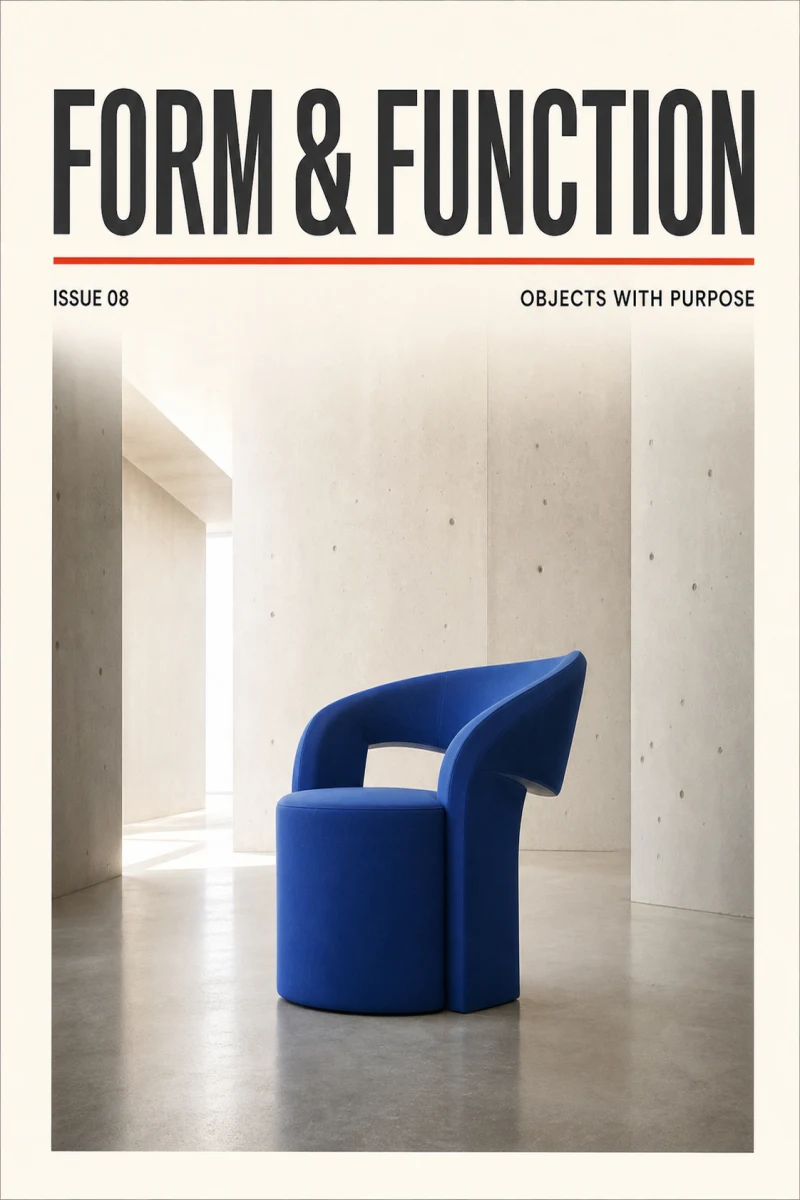
How to write a GPT Image 2 prompt
Separate what the image contains from how it is arranged and how it should look, then lock any required text or counts.
Specify counts and relationships
Write “exactly four blocks connected left to right” or “one chair centred below the headline”. Concrete relationships make instruction following measurable.
Separate content, layout and style
Describe the subject first, then the page hierarchy or camera framing, and finish with medium, palette and lighting.
Lock required copy verbatim
Put exact text in quotation marks, say where each line belongs and prohibit extra words. Short, deliberately placed copy is more reliable.
Other image models
Same generator, different strengths. Switch models when you need more detail, clearer text, faster drafts, or tighter layout control.
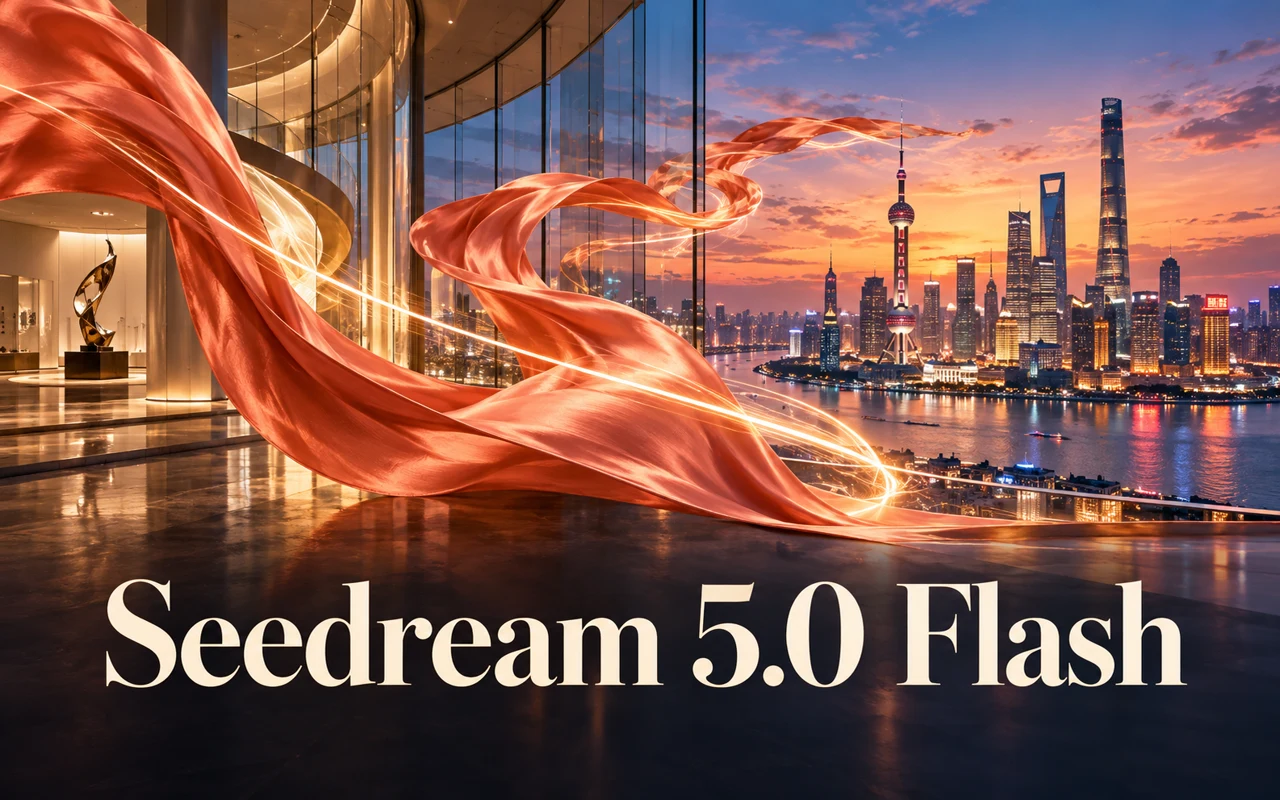
1K, 1.5K and 2K at 9 credits per image, with up to 10 references.
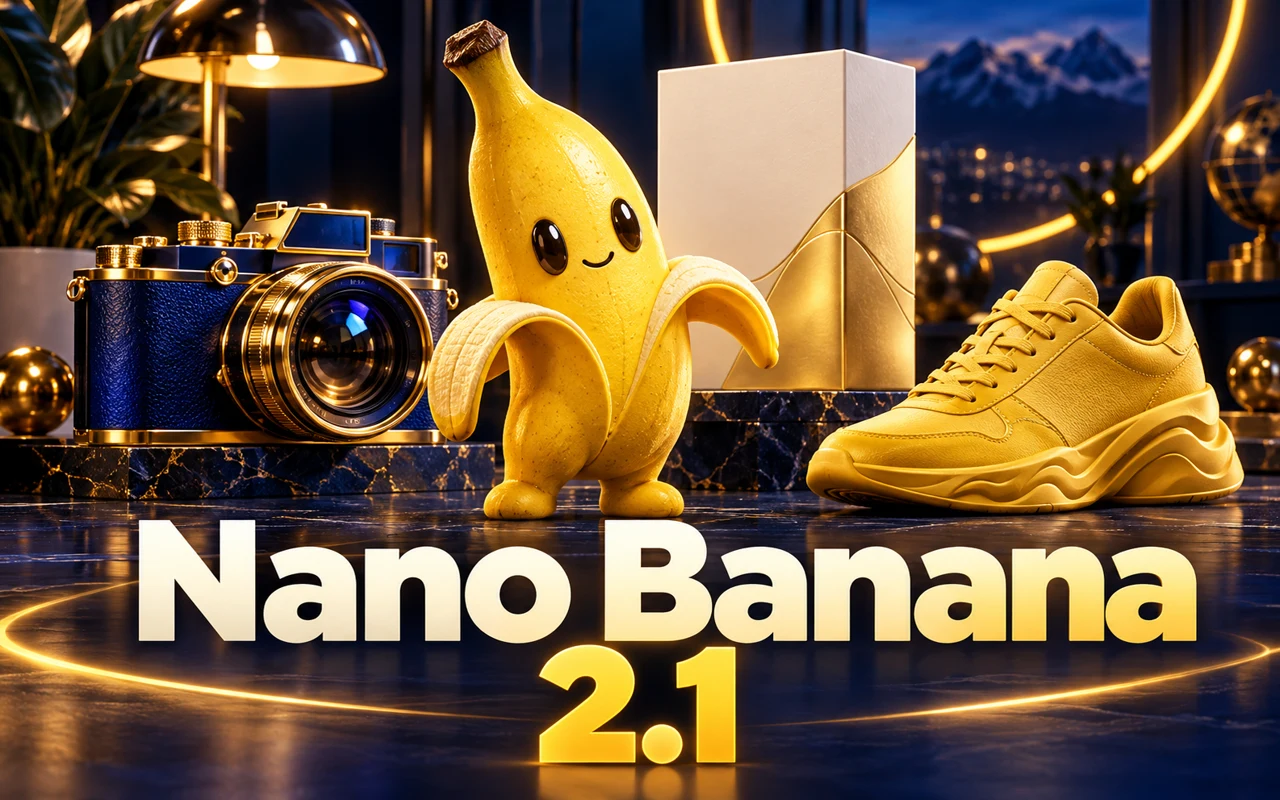
1K / 2K / 4K for 10 / 15 / 33 credits, with up to 14 references.
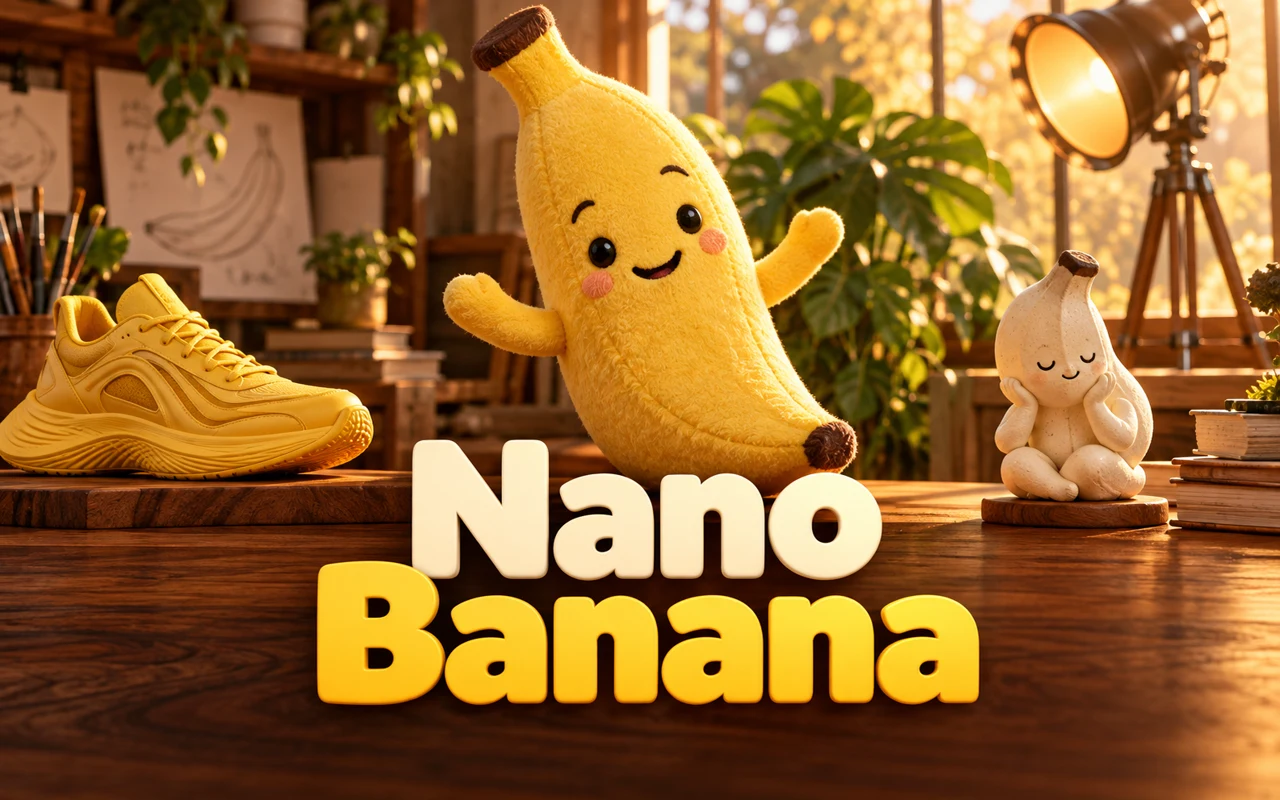
Original Nano Banana: 1K at 12 credits per image, up to 14 references and 1,000-character prompts.
1K output at 12 credits per image, with up to 14 references.
1K, 2K and 4K at 12 credits per image; up to 14 references and 1,000-character prompts.
Fast GPT Image 2.5 default for iteration — from 16 credits, up to 8 refs. Escalate to Sunburst for precision.
GPT Image 2 FAQ
What people ask before their first image on GPT Image 2.
What is GPT Image 2?
GPT Image 2 is OpenAI’s image generation and editing model. On this site, use it for layouts, diagrams, product images and illustration from text or reference images. OpenAI model documentation
How much does one image cost?
1K costs 12 credits per image; 2K costs 20 and 4K costs 32. Credits are deducted when you submit a generation and returned if it fails.
When should I use Flare, Sunburst or Nano Banana Pro instead?
Consider Flare for quick iteration, Sunburst for detailed editing, or Nano Banana Pro for photographic detail and text-heavy images. Flare and Sunburst start at 16 credits per 1K image; Nano Banana Pro starts at 95. Choose using examples relevant to your task.
Is it better for layouts or diagrams?
You can use it for both. Specify margins and hierarchy for covers or poster grids, and counts, arrows and captions for workflow diagrams. Check text and relationships in the result.
Do I need an OpenAI account or an API key?
No. Choose GPT Image 2 in the shared model picker and use the same account and credits as every other model.
Can I batch images or use references?
Each run returns one image. You can attach up to eight reference images for style or product guidance.